CLI Access
The CLI Access feature allows users to connect to their Object Storage account through a secure, API-based command-line interface. This enables automated operations, integration with scripts and tools, and bulk data management using familiar terminal commands.
This guide provides step-by-step instructions to enable, manage, and revoke CLI access from the Cloud Management Portal.
Accessing CLI Settings
To manage CLI access for your Object Storage account:
-
Log in to your Cloud Management Portal.
-
Navigate to Add-on > Object Storage.
-
In the Object Storage Dashboard, scroll to the Object Storage Credentials section.
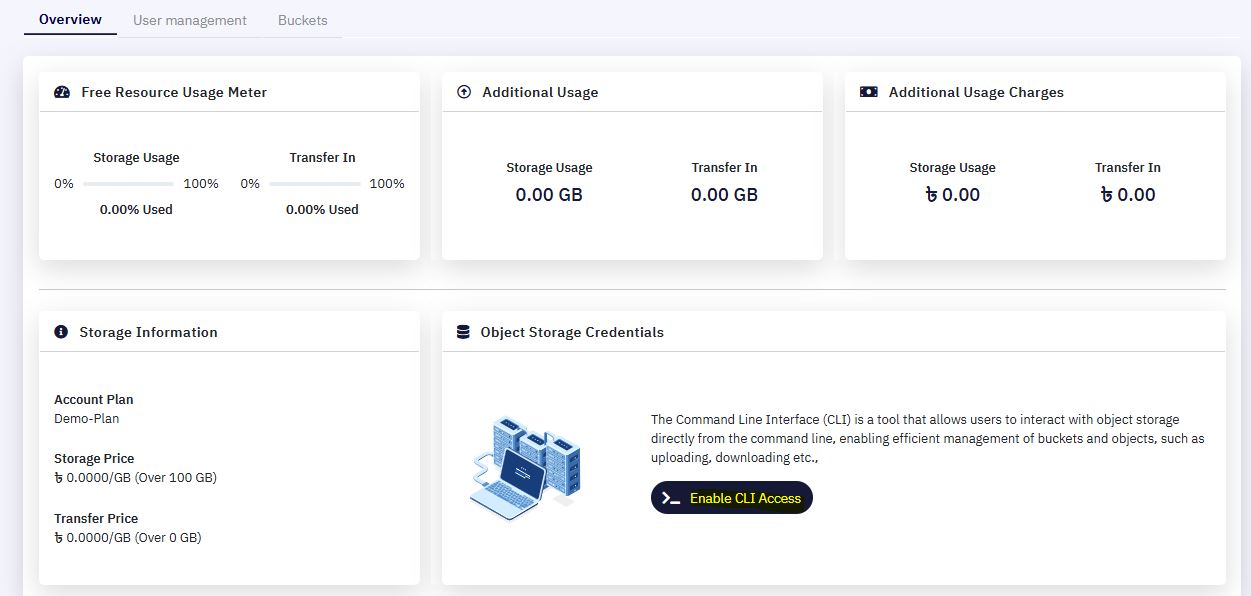
- Click the Enable CLI Access button to begin the setup process.
Enabling CLI Access
When you initiate the CLI setup:
-
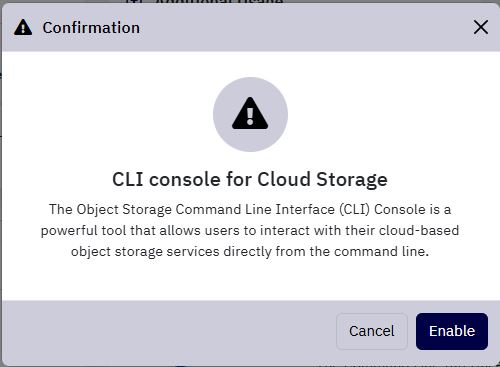
A popup window will appear explaining the purpose of CLI access.
-
Click the Enable button to proceed, or Cancel to abort the operation.
-
Upon confirmation, the system will generate and display the following credentials:
-
Access Key
-
Secret Key
-
Endpoint URL
-
These credentials are unique to your object storage account and are required to authenticate CLI-based operations.
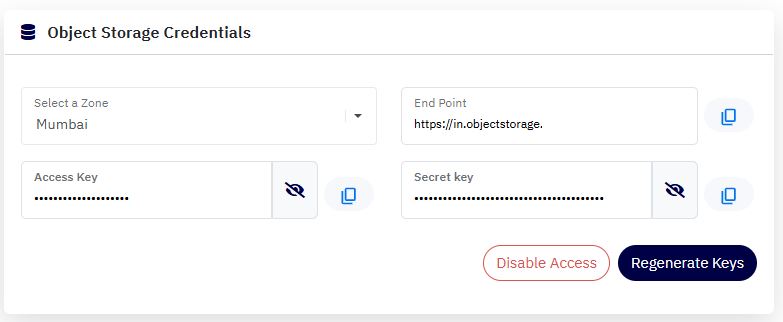
Important: Store your keys securely. Treat them like passwords and avoid sharing them in public repositories.
Regenerating Access & Secret Keys
If you suspect that your keys are compromised or need to rotate them for security compliance:
-
Click the Regenerate Keys button.
-
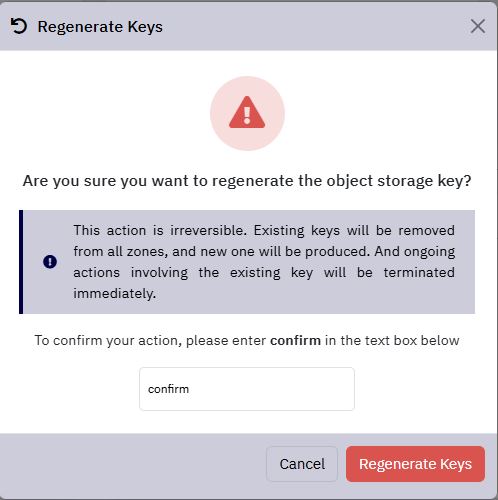
A confirmation window will appear with the message:
“Are you sure you want to regenerate the object storage key?”
Note: Regenerating keys will immediately invalidate the existing keys. Any tools, scripts, or systems currently connected using the old keys will lose access.
-
To proceed:
-
Type the word
confirmin the text box. -
Click Regenerate Keys.
-
- The system will generate a new Access Key and Secret Key, which you can copy and use for future CLI operations.
Disabling CLI Access
To revoke command-line access to your object storage account:
-
Click on the Disable Access button in the same section.
-
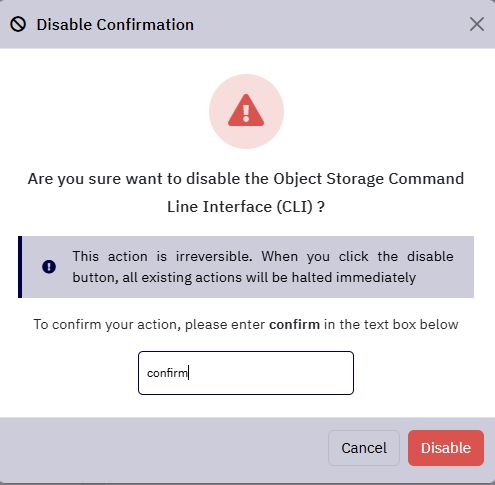
A confirmation dialog will appear with the message:
“Are you sure you want to disable the Object Storage Command Line Interface (CLI)?”
Warning: Disabling access will break any current CLI sessions and integrations using your access credentials.
-
Type the word
confirminto the provided field. -
Click the Disable button.
-
Within seconds, CLI access will be revoked. The access and secret keys will no longer be valid.
-
You can re-enable CLI access at any time by following the steps listed above under Enabling CLI Access.
How to Use the CLI Credentials
Once CLI access is enabled, you can use the generated keys and endpoint URL with any S3-compatible CLI tools like:
-
aws-cli
aws configure --profile my-object-storage AWS Access Key ID: <your-access-key> AWS Secret Access Key: <your-secret-key> Default region name: <your-region> Default output format: json -
And then export endpoint:
export AWS_ENDPOINT_URL=https://<your-endpoint-url> -
s3cmd,rclone, and other compatible SDKs or tools can also be configured similarly.