OS Templates
OS Templates in the marketplace are pre-configured virtual machine (VM) templates that contain the necessary disk images and installation scripts for deploying an operating system (OS). These templates make it easy to set up a virtual machine with a ready-to-use operating system in just a few clicks.
What is an OS Template?**
-
An OS template is essentially a set of resources (including disk images and scripts) designed to automate and streamline the process of deploying operating systems on virtual machines. The template contains:
-
Disk images: These are pre-built snapshots of the OS (e.g., Windows, Linux) that include the necessary system files.
-
Installation scripts: Scripts that automate the installation, configuration, and initialization of the OS, saving users the hassle of setting everything up manually.
-
-
Purpose of OS Templates:
-
The goal of an OS template is to simplify the process of installing and deploying an operating system. With a template, users can create a virtual machine with a working OS in just a few steps, without needing to manually install the OS from scratch.
-
They are particularly useful for system administrators or IT teams who need to deploy multiple VMs with identical configurations, ensuring consistency across environments.
-
How to Access OS Templates in the Marketplace
-
Login into the admin portal.
-
From the portal menu, select the Marketplace icon.
-
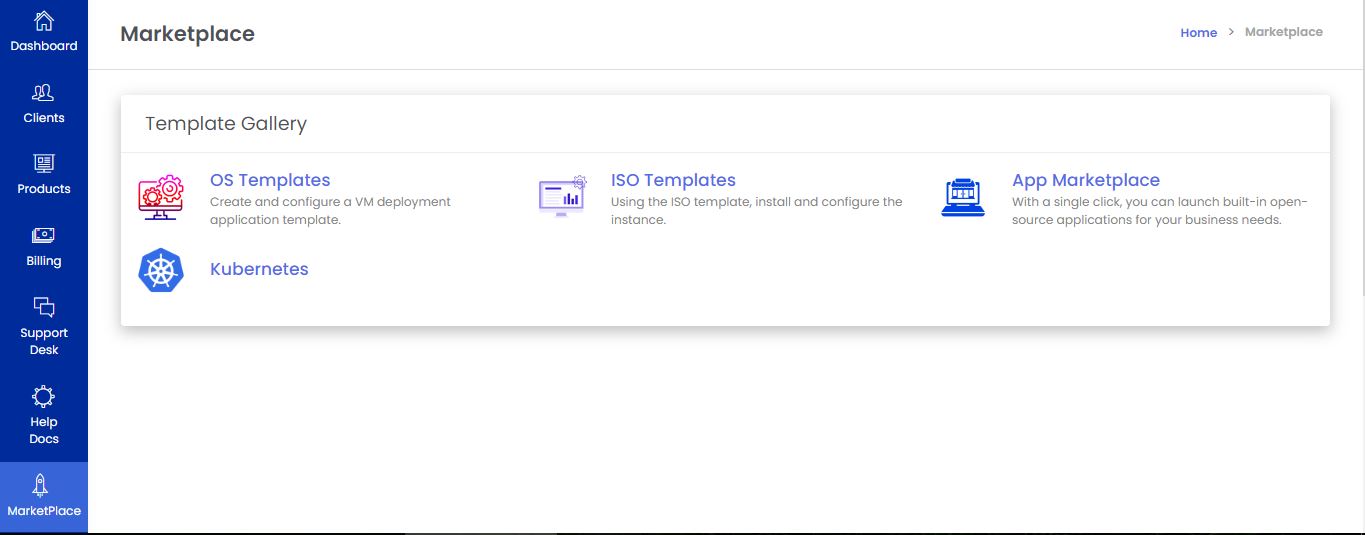
To browse OS templates in the marketplace, click the OS template icon.
OS Template List :
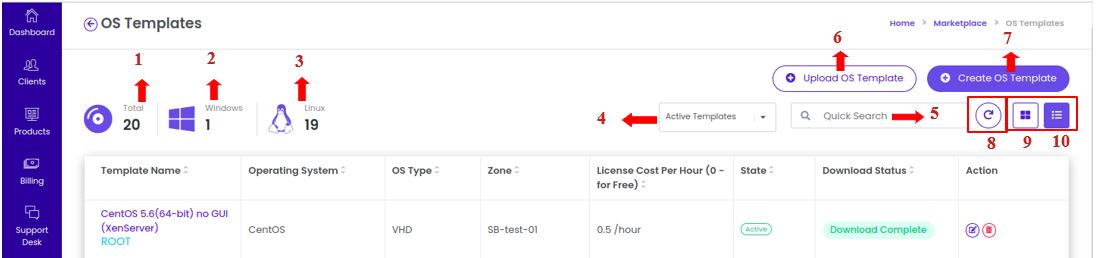
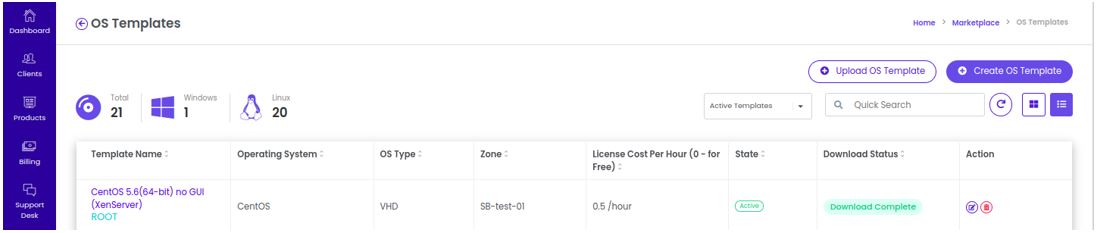
The OS Templates List Page is the section within a marketplace that allows admin to view, manage, and organize the available OS templates. This page provides a range of tools and options to help admin find, upload, create, and manage operating system templates efficiently.
The main components of the OS Templates List Page are elaborated upon below:
1. Total Number of OS Templates :
- This shows the total count of all the available OS templates (both Windows and Linux, or any other supported OS types). It gives admin an overview of how many different operating systems they can choose from for their virtual machine deployments.
2. Total Number of Windows Type OS Templates :
- This filter or indicator provides the number of templates specifically for Windows operating systems. It helps admin quickly identify how many Windows-based OS templates are available (e.g., Windows Server 2016, Windows 10, etc.).
3. Total Number of Linux Type OS Templates :
- Similar to the Windows OS filter, this shows the number of Linux-based OS templates. Admin can quickly find how many Linux OS templates are available, such as Ubuntu, CentOS, or RedHat, among others.
4. Active / Deleted Templates Filter :
- This is a filter that allows admin to view either active OS templates (available for deployment) or deleted templates (templates that have been removed or archived). Admin can toggle between these states to manage templates that are currently in use or view those that were previously available but have been deactivated or deleted.
5. OS Templates Quick Search Field :
- The quick search field allows admin to rapidly search for OS templates by name, type, or other attributes. This search functionality is particularly useful when there are a large number of templates available, helping admin quickly locate the desired template without scrolling through long lists.
6. Upload OS Template Button :
- This button provides the option to upload new OS templates. Administrators can add custom templates by uploading pre-configured disk images and scripts, which will then be available for deployment. This feature is essential for adding custom or non-standard OS versions to the marketplace.
7. Create OS Template Button :
- The Create OS Template button allows admin to build and configure a new OS template from scratch. It guides admin through the process of selecting the OS, configuring settings, and adding the necessary scripts or disk images. This is useful for creating custom templates tailored to specific organizational needs.
8. Refresh Page Icon :
- The Refresh page icon updates the current view to reflect any new changes, such as newly added templates, updates to existing templates, or changes to their statuses. This is helpful for ensuring that the template list is always up-to-date, especially in a collaborative environment where multiple admin(s) may be uploading or modifying templates.
9. Grid View Template List :
- The Grid view option displays the OS templates in a grid format with tiles or icons. This layout provides a more visual and organized way of viewing templates, showing key details (such as OS name and type) in a compact manner. Grid view is useful when there are fewer templates, and admin prefer a visual representation.
10. List View Template List :
- The List view option displays the templates in a detailed list format. This view provides more detailed information about each template in a tabular format, including fields like template name, OS type, creation date, and other relevant metadata. List view is more efficient when dealing with larger numbers of templates, allowing admin to easily sort and filter data.
Upload OS Template:
This option in the admin portal allows administrators to upload OS templates that can be used for creating virtual machines (VMs). This provides flexibility for cloud administrators to define OS templates that can be reused for different VM deployments.
1. Navigate to OS Template :
-
Login into the admin portal.
-
From the portal menu, select the Marketplace icon.
-
To browse OS templates in the marketplace, click the OS template icon.
2. Uploading the OS Template File :
-
Admins can upload an OS template file (disk image) from the local machine. These files could be pre-configured images that will be used for VM creation.
-
From the OS templates page click on the Upload OS Template icon.
3. Basic Configuration :
-
Template Name: Specify the name of the OS template. This is a unique name used to identify the template in the marketplace.
-
Template Description: Add a description that provides a brief overview of the template and what it offers.
-
Select the Zone: Choose the zone where the template will be made available.

4. Resource Configuration:
-
Select the Hypervisor: Specify the type of hypervisor (e.g., KVM, VMware) the template is compatible with, ensuring it's usable in specific environments.
-
Minimum Memory (MB): Define the minimum RAM required to deploy VMs based on this template.
-
Minimum Core: Specify the number of CPU cores required to run this template efficiently.
-
Minimum Root Disk (GB): Provide the minimum size of the root disk required for the OS to run.
-
Template Cost: Enter the cost associated with using this template. This may reflect the price for VM creation.
-
Attach the OS File: Upload the OS file (disk image) from the local machine, which will be used for deploying VMs.
-
Optional: Reference URL: Include an optional reference URL that links to documentation or support material related to the OS.
-
Optional: Resource Tags: Add resource tags for better management and filtering of templates.

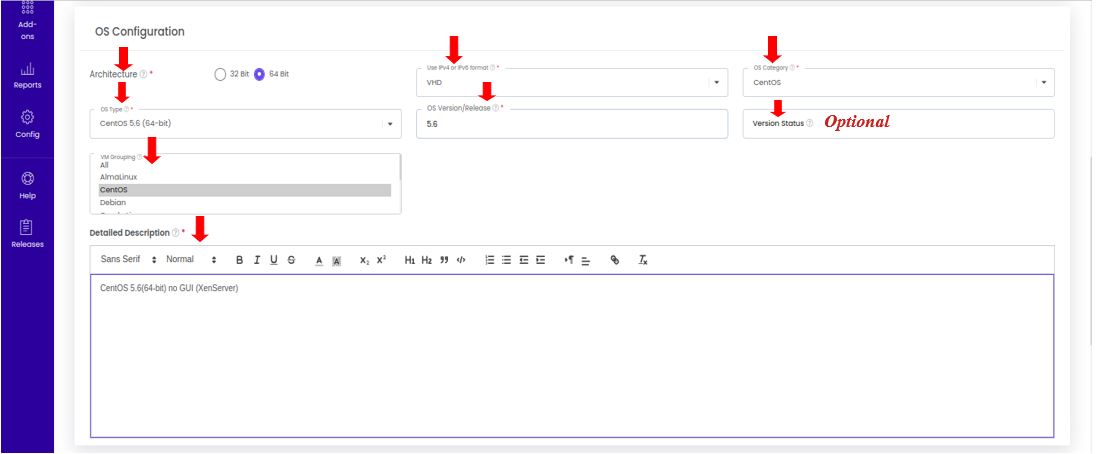
5. OS Configuration :
-
Select the Architecture: Choose the OS architecture (32-bit or 64-bit).
-
Select the Format: Specify the format of the OS template (e.g., QCOW2, VMDK).
-
Select the OS Category: Define the OS category, such as Linux, Windows, etc.
-
Select the OS Type: Choose the specific operating system, such as Ubuntu, CentOS, or Windows Server.
-
Add the OS Version / Release: Specify the exact OS version or release (e.g., Ubuntu 20.04, Windows Server 2019).
-
Optional: Version Status: Add the version status, such as whether it's a stable release, beta version, etc.
-
Select the VM Grouping: Assign the template to a specific VM group for organization and ease of management.
-
Template Detailed Description: Provide a detailed description for the template, explaining its features and use cases.
6. Template Features :
-
Featured: Selecting this option makes the template appear in the featured list of the marketplace, giving it more prominence.
-
Extractable: This option allows users to download the template's disk image after the VM is deployed.
-
Password Enabled: Enable this option to allow password-based authentication when using the template.
-
Share: Enable public sharing of the template. When this option is selected, the template can be shared with others for use in their deployments.
7. Tagging & Pricing :
- One-Time Chargeable: If this option is selected, the template will incur a one-time cost for users. This pricing is typically applied when using the template to create VMs.
8. Plan Preview:
- Upload Template Image: Upload a preview image that will represent the template in the marketplace, typically adhering to a restricted file size.
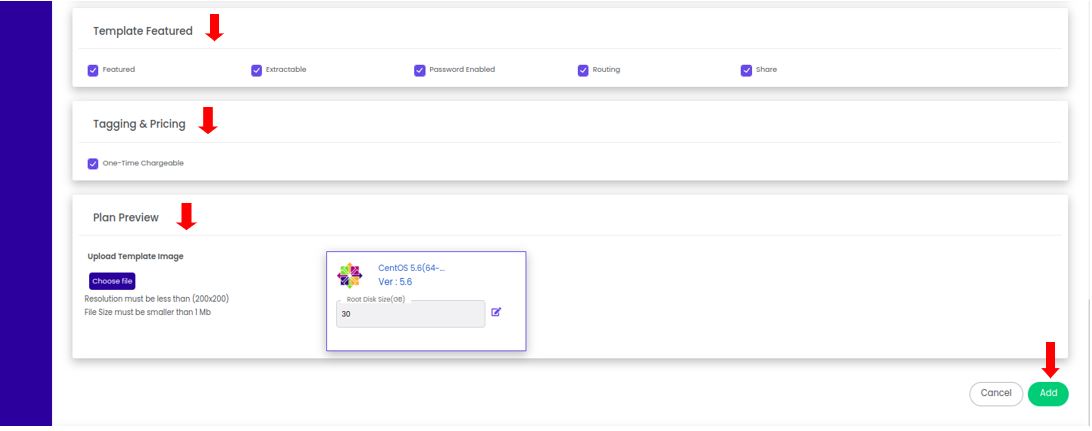
- After filling out all the required configurations, click the Add button to finalize the template upload.
9. Template Upload :
- Once the OS template is uploaded, it will enter an in-progress state, where the system processes the file and prepares it for use. Once the template is validated and processed, it will become available for deployment.

10. Upload Successfully :
- After several minutes, you will see an download status as download complete in the admin portal.
Create OS Template :
The Create OS Template option allows administrators to create an OS template using a template URL link. This method enables creating templates by providing the URL of the OS template instead of uploading the file manually from the local machine.
1. Navigate to Marketplace :
-
Login into the admin portal.
-
From the portal menu, select the Marketplace icon.
-
To browse OS templates in the marketplace, click the Create OS Template icon.
2. Basic Configuration :
-
Template Name: Add a unique name for the OS template, used to identify it within the marketplace.
-
Template Description: Provide a brief description of the OS template, summarizing what it contains.
-
Select the Zone: Choose the zone where the template will be available.

3. Resource Configuration :
-
Select the Hypervisor: Choose the hypervisor type (e.g., KVM, VMware) for which the template is compatible.
-
Minimum Memory (MB): Define the minimum RAM required to deploy this OS template.
-
Minimum Core: Specify the minimum number of CPU cores needed to run the OS template.
-
Minimum Root Disk (GB): Specify the minimum root disk space required for the OS.
-
Template Cost: Define the base cost associated with using the template. This could include costs for provisioning VMs with this template.
-
Add the Template URL: Provide the URL link where the OS template file is hosted. This allows the system to download and use the OS image directly from the specified URL.
-
Per Core License: This option allows administrators to charge based on the number of CPU cores. If this option is enabled, users will be charged per core per month for the template.
-
License Core Per Core (Per month): Specify the cost for the template per core, per month.
-
Note: If the Per Core License option is enabled, the normal template cost will automatically be set to 0, and vice versa.
-

4. Optional Settings :
-
Reference URL: Optionally, provide a URL that links to documentation, support, or additional details about the OS template.
-
Resource Tags: Add tags for better template categorization, filtering, and management.
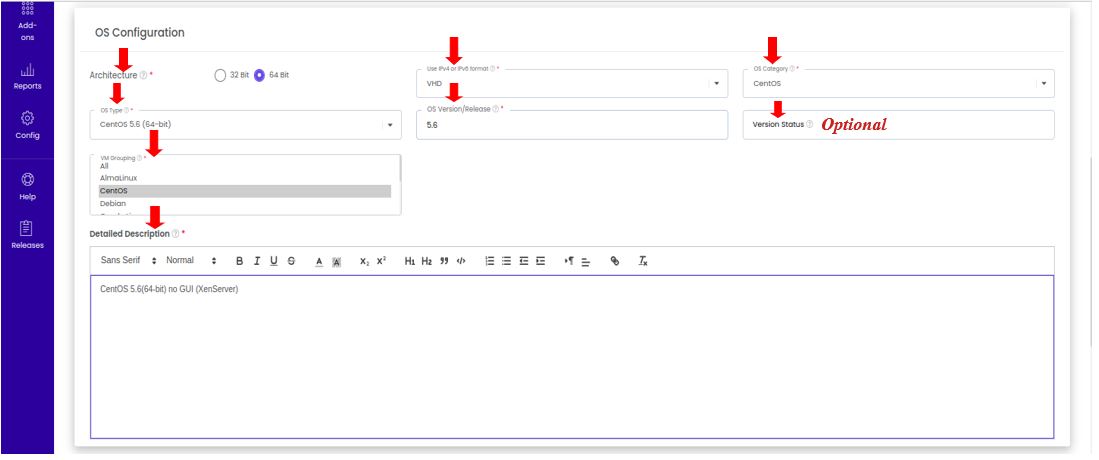
5. OS Configuration :
-
Select the Architecture: Choose the OS architecture (32-bit or 64-bit) for this template.
-
Select the Format: Specify the format of the template (e.g., QCOW2, VMDK).
-
Select the OS Category: Define the category of the OS, such as Windows, Linux, etc.
-
Select the OS Type: Choose the exact operating system, such as Ubuntu, CentOS, or Windows Server.
-
Add the OS Version/Release: Provide the specific OS version or release details (e.g., Ubuntu 20.04, Windows Server 2019).
-
Optional: Version Status: Include the version status, such as whether it is a stable release or beta version.
-
VM Grouping: Assign the template to a VM group for easier organization and template management.
-
Template Detailed Description: Add a more comprehensive description of the OS template, including its features, use cases, and any important notes.
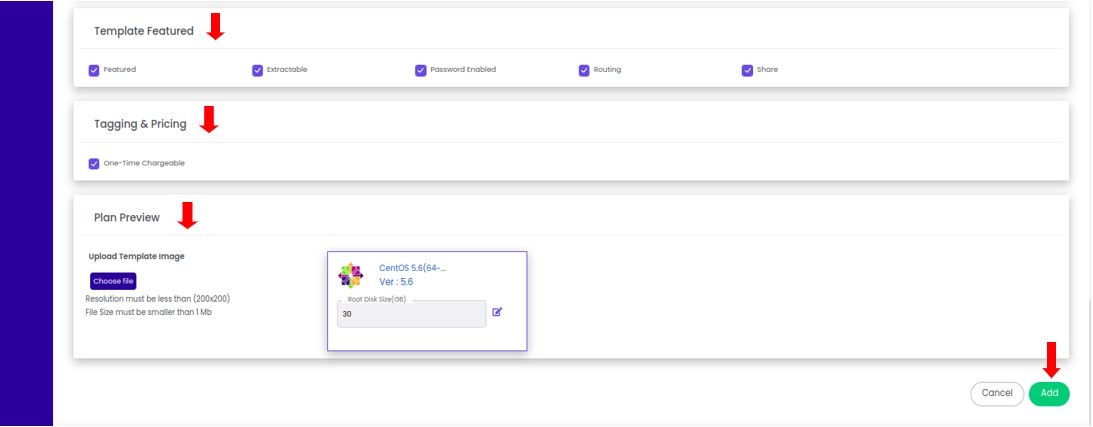
6. Template Features :
-
Featured: Selecting this option adds the template to the featured list in the marketplace, making it more visible to users.
-
Extractable: This option allows users to extract or download the template after a VM is deployed using this template.
-
Password Enabled: Enable this option if password-based authentication is required when using the template.
-
Share: Enable this option to allow the OS template to be shared publicly, making it available to others.
7. Tagging & Pricing :
- One-Time Chargeable: This option allows for a one-time charge for the use of this template. It is typically used for templates that incur a one-time fee for deployment.
8. Plan Preview :
-
Upload Template Image: Upload a representative image for the template, which will be displayed in the marketplace. Ensure the image adheres to the restricted file size limits.
-
Click Add Button: After completing the configuration, click the Add button to save the template.
9. Template Upload Status :
-
Once the OS template has been created, it will appear in the In-progress state while the system processes the template.
-
After successful processing, the template will be available for use in the marketplace.

10. Upload Successfully :
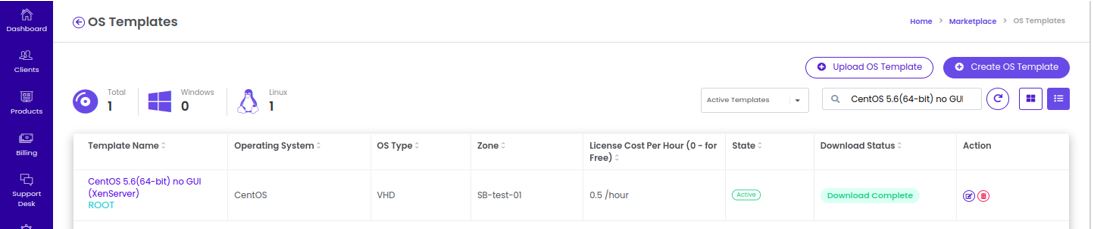
- After several minutes, you will see an download status as download complete in the admin portal.
Edit OS Template :
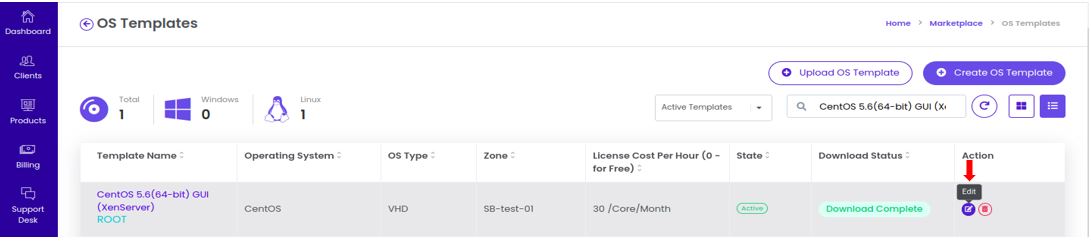
The Edit Action allows administrators to modify existing OS templates by updating their configurations such as basic details, resource specifications, OS settings, and template features.
1. Navigate to Marketplace :
-
Login into the admin portal.
-
From the portal menu, select the Marketplace icon.
-
This is where all the OS templates available in the system are listed.
-
Find and select the specific OS template that needs to be updated.
2. Access the Edit Action :
- Once the template is selected, click on Action > Edit. This will open the template's Edit Template screen.
3. Edit Template Screen :
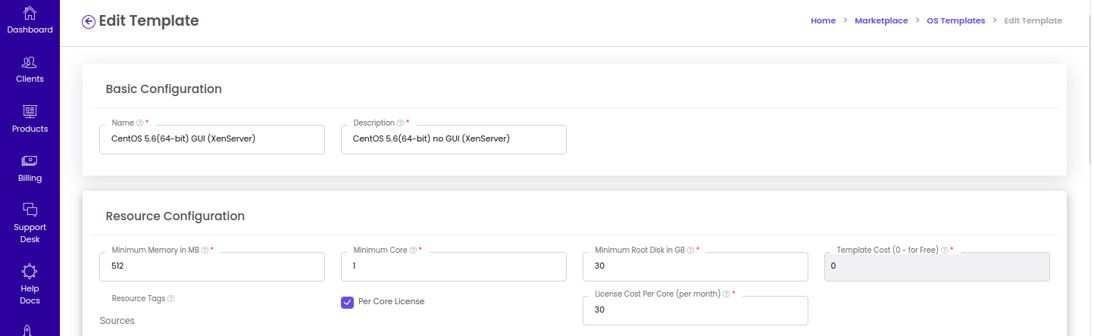
In the Edit Template Screen, administrators can update different aspects of the template such as Basic Configuration, Resource Configuration, OS Configuration & Template Featured Options
4. Update and Save :
- After making the necessary changes, click the Update button to save the modifications.
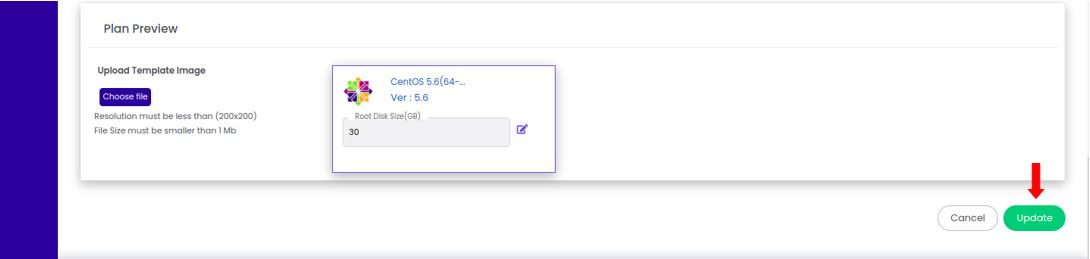
- The OS template will be successfully updated, reflecting the new configurations.

Delete OS Template :
The Delete Action allows administrators to permanently remove an OS template from the marketplace. This action is typically performed when a template is outdated, no longer needed, or requires replacement.
1. Navigate to Marketplace :
-
Login into the admin portal.
-
From the portal menu, select the Marketplace icon.
-
This is where all the OS templates available in the system are listed.
-
Browse or use the search field to locate the specific OS template you want to delete.
2. Access the Delete Action :
-
Once the desired OS template is found, select the template.
-
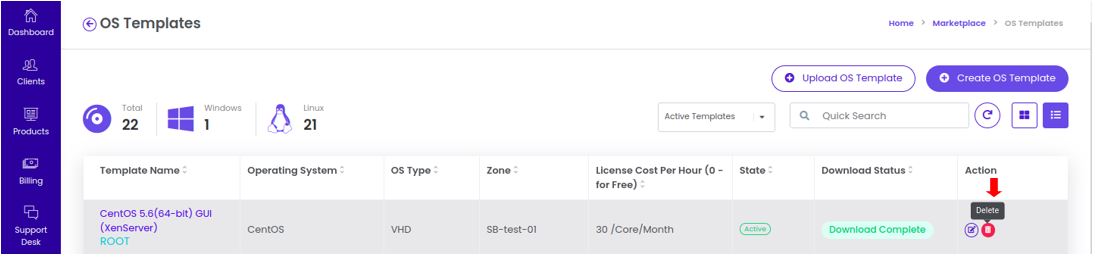
Go to the Action menu and click on the Delete option. This will prompt the system to confirm the deletion.
3. Confirm Deletion :
-
A confirmation message or dialog box will appear asking whether you are sure you want to delete the template.
-
Review the confirmation to ensure that you're deleting the correct template, as this action is irreversible.
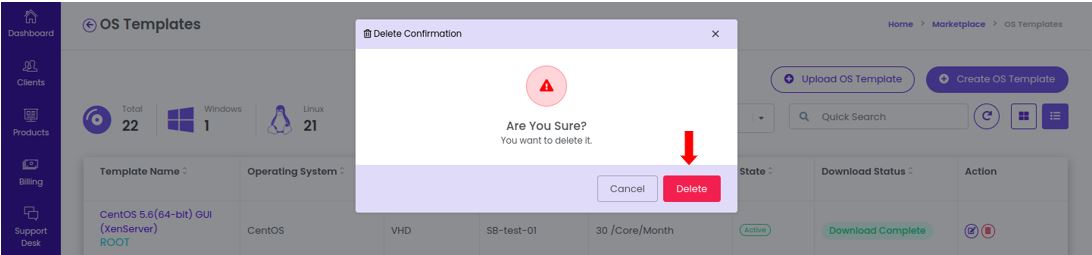
- Click the Delete button to proceed with the removal of the template from the system.